
[h=1] Creating a personal Geodatabase[/h]Personal Geodatabase is an .mdb file which is a set of Microsoft Access database defined by ESRI to hold geodatabase metadata. This kind of Geodatabase is very similar to Geodatabase File. It cannot be written simultaneously by many users and it is limited in size to 2GB for the entire Geodatabase.
Let's start
- Connect to the folder
- Create a feature dataset
- Create a feature class
- Creating attribute domain
- Display the data in ArcMap
- Connect the folder;
- Create a new feature dataset;
Right click on the Personal Geodatabase that we have created, choose ‘New’, then ‘Feature Dataset’. The ‘New Feature Dataset’ window open. Choose a name for the Feature Dataset. Click ‘Second’ to move to the next window. Select the coordinate system we want to choose. Click on ‘Next’ twice and ‘Finish’. A new Feature Dataset has been created.
- Create feature classes;
Right click on the Feature Dataset created in the previous step. Choose ‘New’ then ‘Feature Class’. This will display the ‘New Feature Class’ window. In this window, choose the name of the Feature Class, its type, for example a Polygon Feature and click on ‘Next’. Choose a Field Name and a Data Type. Then ‘Finish’.
- Now let’s create attribute domains;
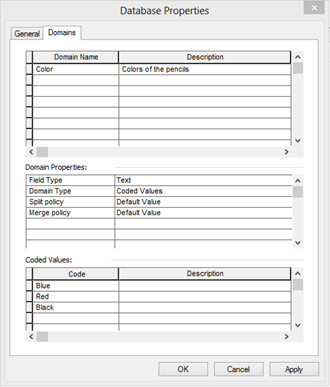
Right click on the personal geodatabase that we have created, then click on ‘Properties’. In the “Database properties” dialog box, choose the ‘Domains’ Tab. Now we put the ‘domains name’ and a ‘description’ for each one. Then select the properties for each domain, one by one. Make sure that you select the proper domain, to modify its properties. In the ‘Domain properties’, choose the type of your codes! The field type that we will input, will be the type of the codes values! So if we choose for example ‘text’ in the ‘Field Type’, codes should be automatically in text types.
أكثر...