
Ensuring your infrastructure is running as expected at all times is not trivial, but it is extremely important. Infrastructure monitoring is at the heart of any stable and functional service, and that is why we have prioritized adding it to FME Cloud.
FME Cloud is the hosted version of FME Server and one of its major benefits is that we handle all of the infrastructure for you. The trade-off is that you have less control than when you deploy FME Server yourself. FME Cloud monitoring gives some of that control back to you.
Why did we build FME Cloud monitoring?
Prior to this release we did have monitoring running on all FME Cloud instances, but only Safe would receive alerts when there was an issue with the server. On receiving the alert we would contact you and work to resolve the issue. This worked but it wasn’t perfect for several reasons:
What can I monitor?
On any FME Cloud instance that you launch, you can view the state of the instance in real time.
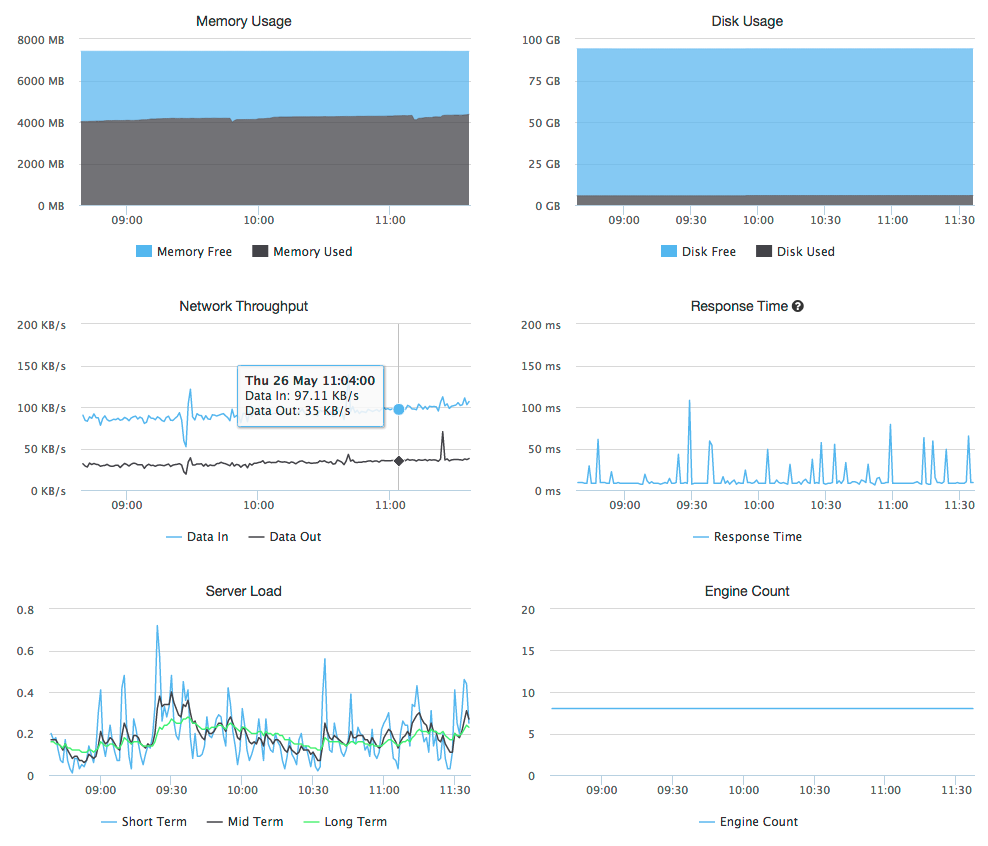
We allow you to create alerts on a subset of these metrics.
Where can I send alerts to?
Currently when an alert triggers you can:
How does it it work?
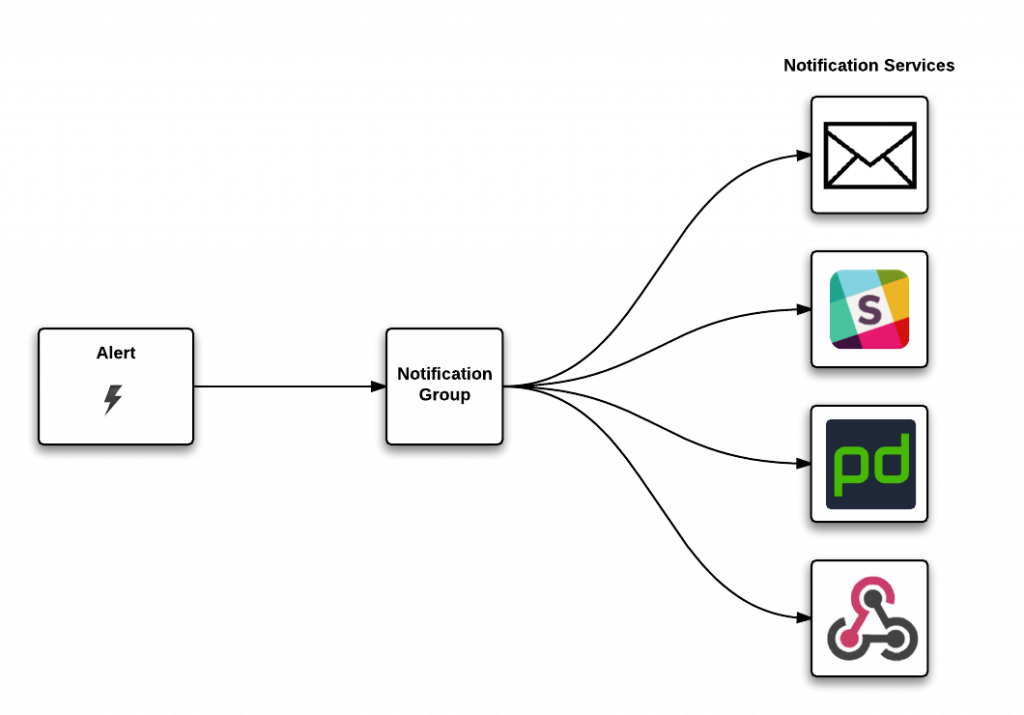
FME Cloud Monitoring is comprised of three components: Alerts, Notification Groups and Notification Services. You can read the full doc here, but here is an overview.
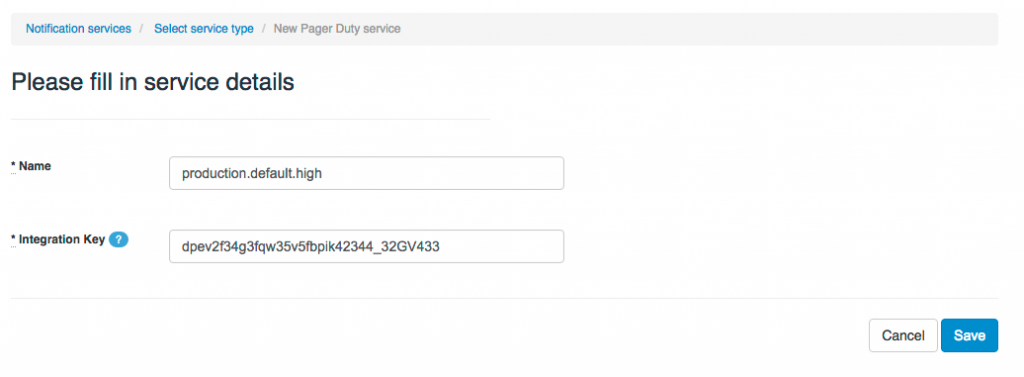
Create Notification Services
I want to send my alerts to PagerDuty to alert the Ops team and send an email to the product manager so he is aware of the situation. The integration support makes this easy and you simply follow the steps to configure each service.
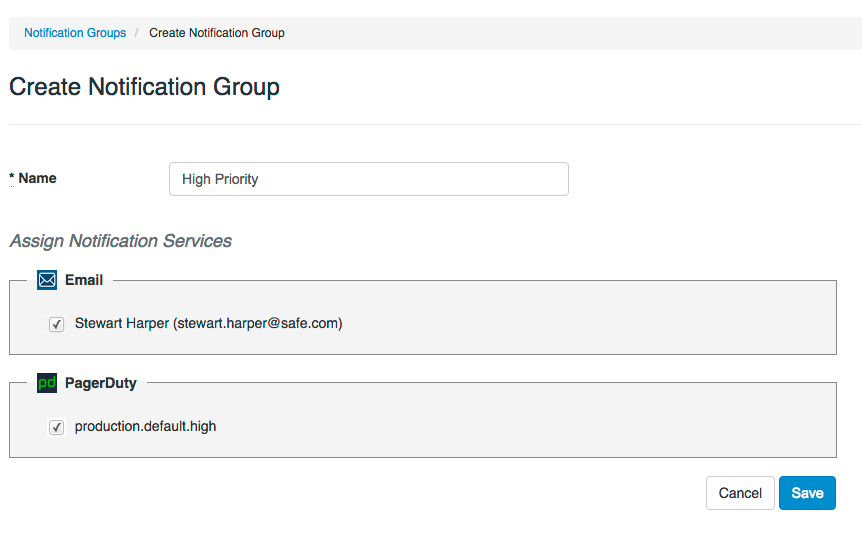
Create Notification Group
Now that you have defined the endpoints you wish to deliver the alerts to, you need to create a notification group. We’ll create a group called High Priority and assign the email and PagerDuty services that we just configured to it. I can now assign this notification group to as many alerts as I want. In a simple setup you might only have a few notification groups, e.g. low and high priority. But as you tailor things and add further instances (e.g. staging, production and development) the notification groups become very useful.
Configuring the Alert
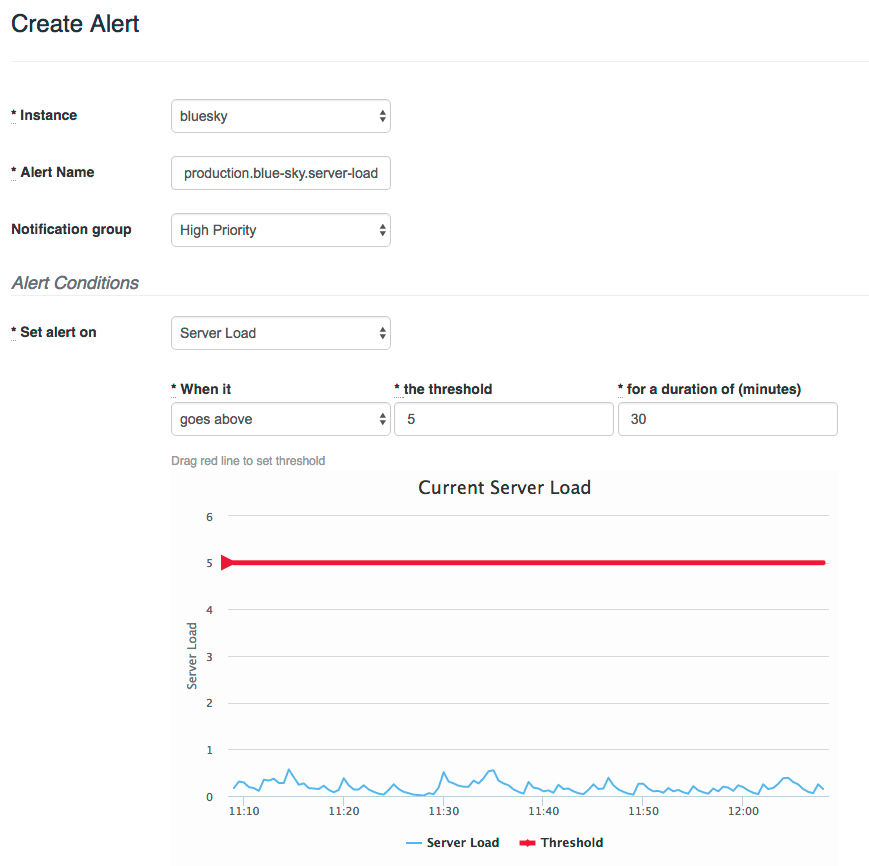
The alert is the final piece and this is where we define the instance condition that we wish to be notified about. So in our case we are going to trigger an alert if the server load goes above 5 for 30 minutes. If that happens a message will be sent to all services in the High Priority notification group.
Message
If an alert triggers a message will be sent to PagerDuty and email.
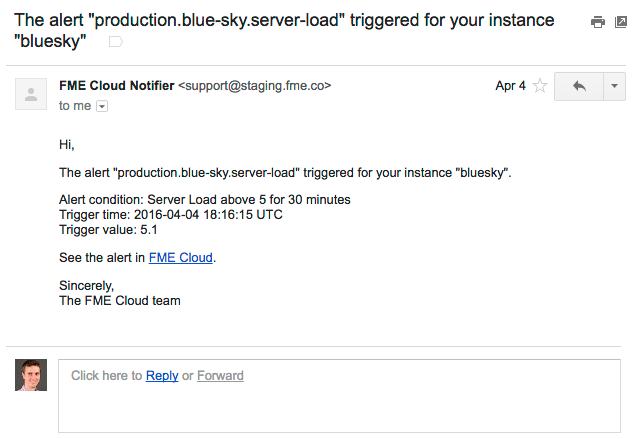
When an alert clears, an email will be sent to alert the user and in PagerDuty the incident is auto-resolved.
Conclusion
FME Cloud monitoring gives you the tools to monitor your infrastructure in a detailed way. You can use it to ensure you are notified the second there is an issue, or to set up preemptive warnings that will trigger when there are early warning signs, or to simply provide insight into how the server is being used—maybe warning you when disk is used or there is a spike in traffic.
If you are currently running an FME Cloud instance in production, we recommend you take advantage of monitoring. Any instance launched after August 2015 is supported.
The post Monitoring your FME Cloud infrastructure with custom alerts appeared first on Safe Software Blog.

أكثر...
FME Cloud is the hosted version of FME Server and one of its major benefits is that we handle all of the infrastructure for you. The trade-off is that you have less control than when you deploy FME Server yourself. FME Cloud monitoring gives some of that control back to you.
Why did we build FME Cloud monitoring?
Prior to this release we did have monitoring running on all FME Cloud instances, but only Safe would receive alerts when there was an issue with the server. On receiving the alert we would contact you and work to resolve the issue. This worked but it wasn’t perfect for several reasons:
- Reactive not preventative. The monitoring was triggered when there was an issue, which often meant the server was already down.
- Poor integration. Organizations were already using tools such as PagerDuty for incident management. Us emailing on an ad hoc basis made it hard to integrate with these tools.
- Alerts could not be tailored. It was hard for us to create alerts that were applicable for all scenarios. For example, some customers push their instances to the limit on a regular basis, so we couldn’t just trigger alerts based on high load.
What can I monitor?
On any FME Cloud instance that you launch, you can view the state of the instance in real time.
We allow you to create alerts on a subset of these metrics.
- Server load: This expresses how many processes are waiting in the queue to access the processor, and can be a useful indicator of whether there is an issue with the server. If there are a lot of processes backing up, then the load increases.
- Disk usage: This refers to the data storage you specified when you launched or resized your instance.
- Response time: The internal response time of the web server that handles the FME Server web application and REST API requests. A long response time indicates an instance that is underpowered because of high load, or an issue with the server (memory leak or runaway process) that has stolen resources.
- FME Engines: The number of FME Engines available to run on the instance.
Where can I send alerts to?
Currently when an alert triggers you can:
- Send a message to any email address.
- Create an incident in PagerDuty.
- Post to a channel on Slack.
- Send an alert to any HTTP/HTTPS endpoint via Webhooks. This really opens things up and allows you to do things like post a message to an AWS SQS queue, VictorOps or even send a message to your FME Server.
How does it it work?
FME Cloud Monitoring is comprised of three components: Alerts, Notification Groups and Notification Services. You can read the full doc here, but here is an overview.
- Notification services define the communication protocols for delivering alerts. FME Cloud supports email, PagerDuty, Slack, and Webhooks.
- A notification group is the collection of notification services assigned to an alert.
- An alert defines the instance conditions you want to be notified about.
Create Notification Services
I want to send my alerts to PagerDuty to alert the Ops team and send an email to the product manager so he is aware of the situation. The integration support makes this easy and you simply follow the steps to configure each service.
Create Notification Group
Now that you have defined the endpoints you wish to deliver the alerts to, you need to create a notification group. We’ll create a group called High Priority and assign the email and PagerDuty services that we just configured to it. I can now assign this notification group to as many alerts as I want. In a simple setup you might only have a few notification groups, e.g. low and high priority. But as you tailor things and add further instances (e.g. staging, production and development) the notification groups become very useful.
Configuring the Alert
The alert is the final piece and this is where we define the instance condition that we wish to be notified about. So in our case we are going to trigger an alert if the server load goes above 5 for 30 minutes. If that happens a message will be sent to all services in the High Priority notification group.
Message
If an alert triggers a message will be sent to PagerDuty and email.
When an alert clears, an email will be sent to alert the user and in PagerDuty the incident is auto-resolved.
Conclusion
FME Cloud monitoring gives you the tools to monitor your infrastructure in a detailed way. You can use it to ensure you are notified the second there is an issue, or to set up preemptive warnings that will trigger when there are early warning signs, or to simply provide insight into how the server is being used—maybe warning you when disk is used or there is a spike in traffic.
If you are currently running an FME Cloud instance in production, we recommend you take advantage of monitoring. Any instance launched after August 2015 is supported.
The post Monitoring your FME Cloud infrastructure with custom alerts appeared first on Safe Software Blog.
أكثر...