
Lining Up Data in ArcGIS: A Guide to Map Projections Paperback – February 18, 2013 by Margaret M. Maher
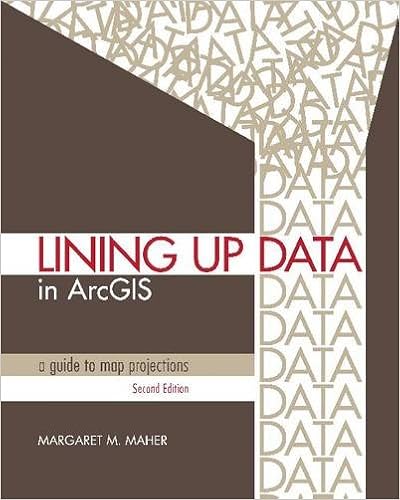
Lining Up Data in ArcGIS: A Guide to Map Projections is an easy-to-navigate troubleshooting reference for any GIS user with the common problem of data misalignment. Complete with full-color maps and diagrams, this book presents practical techniques on how to identify data projections, create custom projections to align data, and solve common data alignment problems. The second edition is compatible with ArcGIS® 10.1 and includes new sections on aligning CAD data and appropriate use of the web Mercator projection. This book will benefit new and experienced GIS users alike.
CONTENTS
Preface vii
About the author ix
Introduction xi
Chapter 1 Identifying the type of coordinate system for data using ArcMap 1
Using vector datasets 2
Identifying the type of coordinate system for data using ArcMap 3
Summary 15
Chapter 2 Identifying the correct geographic coordinate system 17
Example of datum offset between NAD 1927 and NAD 1983 datums
in a GCS 18
Example in which data with the unknown coordinate system is in a GCS, and reference
data is in a projected coordinate system 26
Other issues to consider 31
Summary 34
Chapter 3 Identifying the projected coordinate system 35
State plane coordinate system 36
Universal transverse Mercator (UTM) coordinate system 42
Testing to identify the projected coordinate system for data 44
If state plane options do not align the data, test for UTM 48
Other projected coordinate system options 54
Summary 55
iv CONTENTS
Chapter 4 Applying nonstandard units—when standard coordinate
systems don’t work 57
Customizing the state plane coordinate system with units of inches 58
Comparing units of international feet with US survey feet 72
Saving the custom projection file to disk for future use 72
Defining the projection using the custom projection file 74
Summary 74
Chapter 5 Aligning CAD data—modifying a standard coordinate system 75
Working with CAD files in ArcMap 76
Procedures to address misaligned CAD data 78
1. Identifying units of measure 78
2. CAD files created with references attached 81
3. If CAD data is in nonrotated local coordinates 82
4. Rotated CAD files 85
5. Improving layer/level visibility 86
6. If the CAD files were created in ground coordinates 86
7. The scale factor may be applied to the false easting and false northing 89
8. If the data lies below sea level 90
9. Applying the custom coordinate system to the CAD file 90
Saving the custom projection file to disk 90
Summary 91
Chapter 6 Aligning rotated CAD data 93
Adjusting for the azimuth or rotation parameters 94
Using other custom coordinate system options 113
Summary 115
Chapter 7 Analyzing geographic (datum) transformations and
why we need them 117
What are geographic transformations? 118
Geographic transformation methods 120
Creating and saving a custom geographic transformation in ArcToolbox 127
Summary 129
Chapter 8 Applying geographic transformations 131
Applying composite geographic transformations in ArcGIS 10.1 for Desktop 132
Applying composite geographic transformations in the ArcMap data frame 132
Applying geographic transformations in the Project tool in ArcToolbox 143
Summary 146
Chapter 9 What map projection should I use for my project? 147
Geographic coordinate systems 148
Projected coordinate systems 152
Deciding on the projection to use for your project 157
Creating the custom projection file in ArcMap 159
Appropriate use of the web Mercator projection 164
Summary 165
Chapter 10 Defining projections and their parameters; adding x,y data;
analyzing the shape of buffers 167
Coordinate system definitions provided with ArcGIS for Desktop 168
Coordinate system parameters 168
What is a geographic coordinate system? 170
What is a projected coordinate system? 172
What is a local coordinate system? 174
Adding x,y data to ArcMap and converting to features in a shapefile or geodatabase
feature class 175
Why buffers displayed in ArcMap are not round 183
Summary 196
Appendix A Knowledge Base articles 197
Appendix B Default installation paths 199
Appendix C Default user profile paths 201
Further reading 202
Data source credits 203
Index 205
Download link: http://www.mediafire.com/view/u3443...S__A_Guide_to_Map_Projections_(2nd_Editio.pdf
أكثر...
Lining Up Data in ArcGIS: A Guide to Map Projections is an easy-to-navigate troubleshooting reference for any GIS user with the common problem of data misalignment. Complete with full-color maps and diagrams, this book presents practical techniques on how to identify data projections, create custom projections to align data, and solve common data alignment problems. The second edition is compatible with ArcGIS® 10.1 and includes new sections on aligning CAD data and appropriate use of the web Mercator projection. This book will benefit new and experienced GIS users alike.
CONTENTS
Preface vii
About the author ix
Introduction xi
Chapter 1 Identifying the type of coordinate system for data using ArcMap 1
Using vector datasets 2
Identifying the type of coordinate system for data using ArcMap 3
Summary 15
Chapter 2 Identifying the correct geographic coordinate system 17
Example of datum offset between NAD 1927 and NAD 1983 datums
in a GCS 18
Example in which data with the unknown coordinate system is in a GCS, and reference
data is in a projected coordinate system 26
Other issues to consider 31
Summary 34
Chapter 3 Identifying the projected coordinate system 35
State plane coordinate system 36
Universal transverse Mercator (UTM) coordinate system 42
Testing to identify the projected coordinate system for data 44
If state plane options do not align the data, test for UTM 48
Other projected coordinate system options 54
Summary 55
iv CONTENTS
Chapter 4 Applying nonstandard units—when standard coordinate
systems don’t work 57
Customizing the state plane coordinate system with units of inches 58
Comparing units of international feet with US survey feet 72
Saving the custom projection file to disk for future use 72
Defining the projection using the custom projection file 74
Summary 74
Chapter 5 Aligning CAD data—modifying a standard coordinate system 75
Working with CAD files in ArcMap 76
Procedures to address misaligned CAD data 78
1. Identifying units of measure 78
2. CAD files created with references attached 81
3. If CAD data is in nonrotated local coordinates 82
4. Rotated CAD files 85
5. Improving layer/level visibility 86
6. If the CAD files were created in ground coordinates 86
7. The scale factor may be applied to the false easting and false northing 89
8. If the data lies below sea level 90
9. Applying the custom coordinate system to the CAD file 90
Saving the custom projection file to disk 90
Summary 91
Chapter 6 Aligning rotated CAD data 93
Adjusting for the azimuth or rotation parameters 94
Using other custom coordinate system options 113
Summary 115
Chapter 7 Analyzing geographic (datum) transformations and
why we need them 117
What are geographic transformations? 118
Geographic transformation methods 120
Creating and saving a custom geographic transformation in ArcToolbox 127
Summary 129
Chapter 8 Applying geographic transformations 131
Applying composite geographic transformations in ArcGIS 10.1 for Desktop 132
Applying composite geographic transformations in the ArcMap data frame 132
Applying geographic transformations in the Project tool in ArcToolbox 143
Summary 146
Chapter 9 What map projection should I use for my project? 147
Geographic coordinate systems 148
Projected coordinate systems 152
Deciding on the projection to use for your project 157
Creating the custom projection file in ArcMap 159
Appropriate use of the web Mercator projection 164
Summary 165
Chapter 10 Defining projections and their parameters; adding x,y data;
analyzing the shape of buffers 167
Coordinate system definitions provided with ArcGIS for Desktop 168
Coordinate system parameters 168
What is a geographic coordinate system? 170
What is a projected coordinate system? 172
What is a local coordinate system? 174
Adding x,y data to ArcMap and converting to features in a shapefile or geodatabase
feature class 175
Why buffers displayed in ArcMap are not round 183
Summary 196
Appendix A Knowledge Base articles 197
Appendix B Default installation paths 199
Appendix C Default user profile paths 201
Further reading 202
Data source credits 203
Index 205
Download link: http://www.mediafire.com/view/u3443...S__A_Guide_to_Map_Projections_(2nd_Editio.pdf
أكثر...