
 Story Maps*have become a very useful and engaging communication tool for many organizations. One of the reasons for this is that Story Maps can contain many types of rich, interactive content like web maps and 3D scenes, videos, web pages, other ArcGIS web apps, and even other story maps. While this is a great feature, overusing it can detract from an otherwise great story map.
This post has recommendations for using web content effectively in the*Story Map Journal and Story Map Series apps, and at the end of the post you’ll find some tips for troubleshooting common issues with embedding.
Recommendations
First and foremost, it’s best to be selective about embedding*apps and websites*in your stories.*In general only embed something when you need readers to interact with it*without leaving your story. Otherwise, it can be much more effective to:
- explain the app or website and why it’s important in your narrative,
- provide a screenshot of it in the main stage or side panel (optional), and
- include a hyperlink to it in your story text.
One exception to this is when you are using your story map as a presentation tool rather than designing it for your audience to read through on their own. In this case embedding websites or GIS apps may be an effective way to demonstrate them during your presentation without leaving the story map.
When linking to a website or app (as described in #3, above) you can use a regular hyperlink that opens in a new browser tab, or — if you’re using Story Map Journal — you can configure a main stage action so the content opens inside your story map.
Know your audience
Having your audience in mind is storytelling 101. For example, if you’re creating a story for geospatial analysts then including a GIS-style app is probably ok; however, if you are targeting a general audience or a non-technical group then GIS apps can introduce unnecessary complexity that detracts from your story’s ability to communicate.
Regardless of your specific audience, all readers appreciate simplicity, so do your best to make your story easy to use and read. This does not mean you shouldn’t use interactive content like web maps and apps. Nor does it mean that you need to dilute your story so that it’s no longer compelling. Rather, look to use interactive content when it best supports your ideas, and find ways to compose your story to simplify the interaction required by readers.
A great way to keep things simple for your audience is to use a Map Journal with*main stage actions. This helps you as the author use maps to tell your story in a very deliberate way rather than turning your audience lose with generic GIS tools or widgets. Here are some examples of good use of main stage actions to tell a story:
- New Russian Gas Export Projects*- by*Exprodat
- Climate Change and Water*- by*U.S. Bureau of Reclamation
- Understanding the New National Flood Standard*- by*Esri’s Federal Team
Some apps are good for embedding, some aren’t
Some apps that can work well when embedded in a Story Map Series or Story Map Journal are listed below. Be sure to read our tips for embedding story maps in other story maps*and*tips for embedding 3D scenes in story maps*here*and*here.
- Story Map Swipe and Spyglass
- Story Map Tour
- Time-Aware*configurable app
- Simple*Web AppBuilder*apps (with a few basic widgets)
- ArcGIS.com web scene viewer
One situation to avoid is using an app with a side panel inside a storytelling app that also has its own side panel. This will create parallel narratives that can confuse readers. To prevent this choose a different app, disable the side panel in the embedded app’s configuration, or don’t use the description panel in Map Series sections where other side panel apps are embedded.
A good combination of story maps can be using one or more Map Journals inside a Map Series (Bulleted or Tabbed layout with no side panel in sections that have a Map Journal). This can be a good way to break a long Map Journal into chapters. Here’s*a nice example of this from the U.S. Department of Energy:

Other tips
Don’t embed complex or text-heavy web pages in stories.*Some websites have complex navigation or are poorly designed. It’s best not to embed (or even include a screenshot of) these sites since they will detract from the usability and appearance of your story.
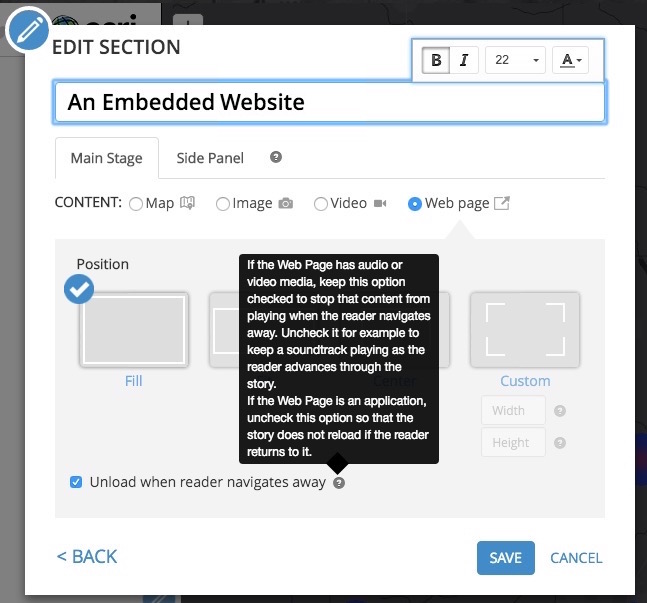
For apps and web pages always use the*Fill*position (this is the default) so they fill the entire main stage. Also consider if disabling the option to “Unload when reader navigates away” makes sense for your content according the the instructions shown in the help tip.
Also, try to*match colors and themes*of embedded apps to the main story*as much as possible.*It’s best to use neutral colors when combining different apps.
Troubleshooting
If you’ve embedded an app or web page and it’s not working, here are some common issues to look for.
Sharing*ArcGIS items
Check that all the components in your story shared properly. If you want to share your story publicly, for example, then all its layers, maps, and apps must also be shared publicly. This includes layers and maps used in an embedded app or story map. If you need to share your story with someone in your organization or group then all components must be shared either with your organization or publicly, and the same idea would apply when sharing a story to a group.
Of course you don’t have permission to change the sharing on items you don’t own, so be aware of this when using someone else’s map or layer that’s not shared publicly.
You can use My Stories to check for most sharing errors, but at this time My Stories does not check the status of maps and layers inside embedded apps or stories so these must be checked separately.
Mixed Content
Another possible reason for content not appearing is that your story is trying to access mixed content.*This happens when you connect to your story over an encrypted connection (https) but some of its components, like images or other web files, are being accessed over an unencrypted connection (http). Browsers restrict this for security reasons (read more here).

The simplest way to fix this is usually to make sure that all URLs you use to embed web pages, apps, story maps, images, or videos in your story use https. If you do this your story will work whether it is accessed over http or https. ArcGIS Online supports https and http, so it’s good practice to always use an https URL when embedding an ArcGIS configurable app or story map.
In fact, if your ArcGIS Online administrator has enabled https-only on your organization, or if you are creating stories on an instance of Portal for ArcGIS (which requires https), then all URLs for apps, web pages, images, videos, etc. that you add to your story must use and support https.
Some websites, however, may not support https, so this may affect their visibility in your story. If you find a site like this it will only appear if your story is accessed over http. This may limit your options so often it’s best to just link to a site like this so readers can open it in another browser tab.
Some websites restrict embedding
If you have checked the URL protocols (http/https) as described above and your content still does not appear in the story it may be that the website itself explicitly restricts embedding. This is a choice that some organizations make to protect their content from misuse by 3rd parties. If this is the case with a website you want to add to your story map you’ll have to use a photo or screenshot, describe it, and link to it as described above.
If you are familiar with using browser development tools you can see several of the errors described above in the browser console. You may see error messages for “mixed content” or embed restriction errors that refer to a property called “X-Frame-Options.”
More information
- Embedding a Story Map within a Story Map
- Using Story Map Journal Main Stage Actions
- How to Make a Time-Aware Story Map
- Blog posts about My Stories
أكثر...